 vijay1983
XAMPP Download Guide 2026: Install on Windows, Mac & Linux Easily
Introduction: You Don’t Need a Live Server to Build Websites
Here’s a frustration every beginner developer knows well: you want to learn PHP, test a WordPress theme, or build a database-driven app — but you don’t want to pay for web hosting just to run a few experiments. You want to work locally, on your own machine, without uploading anything to the internet.
That’s exactly what XAMPP solves.
XAMPP is a free, open-source local server environment that turns your laptop or desktop into a fully functional web server in minutes. It bundles Apache, MariaDB, PHP, and Perl into a single installer — no configuration nightmares, no terminal wizardry required (well, mostly).
Whether you’re on Windows 11, macOS, or Linux, there’s a version for you. It’s been a staple of web development education for over two decades, and in 2026, it’s still one of the best ways to start building.
Let’s walk through everything — what XAMPP is, why it matters, and exactly how to get it running on your machine.

Section 1: What Is XAMPP?
XAMPP is an acronym, and once you know what each letter stands for, it all makes sense:
- X — Cross-platform (works on Windows, Mac, Linux)
- A — Apache (the web server)
- M — MariaDB/MySQL (the database)
- P — PHP (the server-side scripting language)
- P — Perl (another scripting language, included for legacy/advanced use)
It was created by the Apache Friends project and is maintained as free, open-source software. The idea was simple: instead of making developers install and configure Apache, PHP, and MySQL separately — which is genuinely painful — bundle them all together into one easy installer.
Why developers use it: XAMPP lets you run a local web server on your own machine. You can develop sites, test code, and run databases without touching the internet.
Why students love it: There’s nothing to pay for, nothing to deploy, and nothing to break publicly. You can experiment freely.
Why it saves money: Hosting plans cost money. XAMPP costs nothing. For learning, prototyping, and testing, it’s the obvious choice.
Section 2: Why Use XAMPP in 2026?
You might wonder — with cloud IDEs, Docker, and managed hosting so accessible, does XAMPP still make sense? Absolutely. Here’s why:
- Local development is faster. No upload delays. Changes show instantly.
- WordPress testing. Install WordPress on localhost and test themes, plugins, and updates risk-free before pushing live.
- Offline coding. Works without an internet connection — great for travel or spotty Wi-Fi.
- School and college projects. Perfect for PHP assignments, database coursework, and web dev labs.
- PHP practice. The best way to learn PHP is to just run it. XAMPP makes that a two-minute setup.
- Safe testing environment. Break things without consequences. Try unstable plugins. Corrupt a database. It’s all local.
- No hosting bills. For students and beginners, this alone makes it worth using.
Section 3: XAMPP Download for Windows
Windows is where the vast majority of XAMPP users live. Whether you’re on Windows 10 or the latest Windows 11, the process is nearly identical.
System Requirements (Windows)
- Windows 10 or Windows 11 (32-bit or 64-bit)
- At least 512MB RAM (1GB+ recommended)
- ~1GB free disk space
- Administrator access (for installation)
How to Download XAMPP for Windows
- Go to the official XAMPP site: https://www.apachefriends.org
- Click the Download button under “XAMPP for Windows”
- Choose the latest stable version (PHP 8.x recommended for 2026)
- The installer is an
.exefile — save it to your Downloads folder
This is the official windows xampp download source. Avoid third-party mirror sites; always grab it from Apache Friends directly.
Installation Steps
- Double-click the downloaded
.exefile - UAC Warning: Windows may ask “Do you want to allow this app to make changes?” — click Yes. This is normal. XAMPP needs to write to
C:\xampp. - The Setup Wizard launches. Click Next.
- Choose which components to install. For beginners, leave defaults checked (Apache, MySQL, PHP, phpMyAdmin).
- Choose the installation folder. Default is
C:\xampp— recommended. - Click Next and let it install. Takes about 1–2 minutes.
- When complete, check “Start the XAMPP Control Panel” and click Finish.
Starting Apache and MySQL
In the XAMPP Control Panel:
- Click Start next to Apache
- Click Start next to MySQL
Green indicators mean they’re running. Open your browser and visit http://localhost — if you see the XAMPP welcome page, you’re in business.
Common Windows Issues
Firewall popup: Windows Firewall may ask if Apache can access the network. For local use, “Private networks” access is enough. You can decline public access.
Port 80 conflict: If Apache won’t start and shows port 80 as busy, something else is using it — often Skype, IIS, or another web server. See Section 8 for fixes.
Section 4: XAMPP Download for Mac OS
Mac users have a smooth XAMPP experience too. Here’s what to know for a clean xampp download for mac ossetup.
Intel vs Apple Silicon
As of 2026, XAMPP for Mac supports both Intel Macs and Apple Silicon (M1/M2/M3) Macs. The Apache Friends download page detects your architecture automatically, but double-check before downloading if you’re on an M-series chip.
How to Download and Install
- Visit https://www.apachefriends.org
- Click Download under “XAMPP for macOS”
- The download is a
.dmgfile - Open the
.dmgand drag the XAMPP folder to your Applications directory - Open the XAMPP application from
/Applications/XAMPP/manager-osx.app
Handling macOS Security Permissions
Apple’s Gatekeeper may block the installer with a message like “XAMPP can’t be opened because it is from an unidentified developer.”
Fix it:
- Go to System Settings → Privacy & Security
- Scroll down to find the XAMPP entry
- Click Open Anyway
This is a standard macOS security gate — XAMPP itself is safe when downloaded from the official source.
Starting Services on Mac
In the XAMPP Manager:
- Click the Manage Servers tab
- Select Apache Web Server → click Start
- Select MySQL Database → click Start
Visit http://localhost to confirm it’s working.
Section 5: XAMPP Download for Linux
Linux is where XAMPP requires just a little more command-line comfort — but it’s still approachable. This applies to Ubuntu, Debian, Fedora, and most major distros.
Download the Linux Installer
- Visit https://www.apachefriends.org
- Click Download under “XAMPP for Linux”
- The file is a
.runinstaller (e.g.,xampp-linux-x64-8.x.x-installer.run)
Install via Terminal
# Make the installer executable
chmod +x xampp-linux-x64-8.x.x-installer.run

# Run the installer (needs sudo)
sudo ./xampp-linux-x64-8.x.x-installer.run
Follow the graphical installer that appears. XAMPP installs to /opt/lampp/.
Starting XAMPP on Linux
sudo /opt/lampp/lampp start
To start specific services:
sudo /opt/lampp/lampp startapache
sudo /opt/lampp/lampp startmysql
Permissions Fix Tips
If you get “Permission denied” errors when writing to htdocs:
sudo chmod -R 777 /opt/lampp/htdocs
Use 777 only for local development — never on a production server.
Section 6: XAMPP Portable Version
The xampp download portable edition is a lesser-known but genuinely useful version of XAMPP.
What “Portable” Means
The portable version doesn’t install to your system. Instead, it runs entirely from a folder — which means you can put it on a USB drive, plug it into any Windows computer, and run a local web server without installing anything.
Use Cases
- USB use case: Carry your entire dev environment on a thumb drive. Useful for demos or lab work.
- Student computer labs: Can’t install software on school computers? Plug in the USB, run XAMPP portable, done.
- Temporary demo environments: Setting up a quick demo for a client? Run portable XAMPP, show the project, unplug and leave.
- No admin rights required: Since nothing gets “installed,” you often don’t need administrator access.
Where to Get It
The portable version is available via PortableApps.com (look for “XAMPP Portable”). Always verify the source before downloading.
Section 7: How to Use XAMPP After Installation
You’ve installed it. Now what? Here’s your quick-start workflow.
The htdocs Folder — Your Web Root
Everything you want to serve locally goes in the htdocs folder:
- Windows:
C:\xampp\htdocs\ - Mac:
/Applications/XAMPP/htdocs/ - Linux:
/opt/lampp/htdocs/
Create a subfolder here for each project. For example, C:\xampp\htdocs\myproject\.
Testing with localhost
Visit http://localhost/myproject/ in your browser. If index.php or index.html exists there, it’ll load.
Running Your First PHP File
Create a file called test.php in htdocs with this content:
<?php
phpinfo();
?>
Visit http://localhost/test.php — you’ll see a full PHP configuration page. That means PHP is working.
Accessing phpMyAdmin
Visit http://localhost/phpmyadmin/ — this is the GUI for managing your MySQL/MariaDB databases. Create databases, run queries, and manage tables, all from your browser. No command line needed.
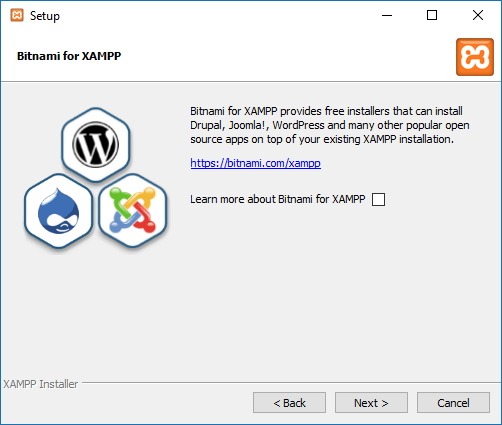
Installing WordPress Locally
- Download WordPress from https://wordpress.org
- Unzip it into
htdocs/wordpress/ - In phpMyAdmin, create a new database called
wordpress - Visit
http://localhost/wordpress/and follow the 5-minute install - Use
localhostas the database host,rootas the username, and leave the password blank (default XAMPP config)
Section 8: Common Errors and How to Fix Them
Apache Won’t Start — Port 80 Is Busy
The most common XAMPP problem. Something is already using port 80.
Likely culprits: Skype (older versions), IIS (Windows Internet Information Services), another web server.
Fixes:
- Disable IIS: Search “Turn Windows features on or off” → uncheck “Internet Information Services”
- Change XAMPP’s port: In XAMPP Control Panel → Apache → Config →
httpd.conf. ChangeListen 80toListen 8080. Then access viahttp://localhost:8080 - Change Skype’s port: Skype Settings → Advanced → uncheck “Use port 80 and 443 as alternatives”
MySQL Shutdown Unexpectedly
Usually caused by a corrupted ibdata1 file or a port conflict on 3306.
Fix: Delete the contents of C:\xampp\mysql\data\ except for your actual database folders and the ibdata1 file. Then restart. If that doesn’t work, check if another MySQL instance is running.
Antivirus Blocking XAMPP
Some antivirus tools flag XAMPP’s Apache or MySQL as suspicious. Add C:\xampp\ to your antivirus exclusions list.
macOS Permission Issues
If you can’t write to htdocs on Mac:
sudo chmod -R 777 /Applications/XAMPP/htdocs
Linux “Permission Denied”
sudo chown -R $USER:$USER /opt/lampp/htdocs
Section 9: XAMPP vs WAMP vs MAMP vs LocalWP
Which local server tool is right for you?
| Tool | Best For | Platform | WordPress-Optimized | Beginner-Friendly |
|---|---|---|---|---|
| XAMPP | General PHP/MySQL dev | Windows, Mac, Linux | ✅ Yes | ✅ Yes |
| WAMP | Windows-only users | Windows only | ✅ Yes | ✅ Yes |
| MAMP | Mac users (clean UI) | Mac, Windows | ✅ Yes | ✅ Yes |
| LocalWP | WordPress developers | Windows, Mac, Linux | ⭐ Best-in-class | ⭐ Easiest |
The verdict: If you’re learning PHP or building general web projects, XAMPP is the most versatile choice. If you’re focused purely on WordPress development, LocalWP offers a more streamlined experience. WAMP is great if you’re Windows-only and prefer a lighter install. MAMP is polished for Mac users who want a GUI-first experience.
Section 10: Is XAMPP Safe?
Short answer: yes, if you use it correctly. Here’s the full picture.
Safe when:
- Downloaded from the official source: https://www.apachefriends.org
- Used locally (not exposed to the internet)
- Kept updated to the latest version
Not safe when:
- You expose it to the internet without security hardening. XAMPP ships with default credentials (
rootwith no password for MySQL, open phpMyAdmin). That’s fine for localhost — it’s a serious vulnerability if your machine is publicly accessible. - You ignore updates. Older versions may have unpatched vulnerabilities.
Best practices:
- Only run XAMPP when you need it. Don’t leave Apache and MySQL running 24/7.
- Don’t forward XAMPP ports through your router.
- If you move to production, use a proper server configuration — not XAMPP.
Section 11: FAQs (AEO-Optimized)
Is XAMPP free?
Yes. XAMPP is completely free and open-source. It’s maintained by Apache Friends and has no paid tier.
Is XAMPP safe for Windows 11?
Yes. XAMPP runs well on Windows 11. Download it from the official Apache Friends site and use it for local development only.
Can I install WordPress on XAMPP?
Absolutely. Download WordPress, place it in the htdocs folder, create a database in phpMyAdmin, and run the WordPress installer via http://localhost/yourfolder.
Does XAMPP work on Mac?
Yes. XAMPP for macOS supports both Intel and Apple Silicon Macs. Download the .dmg from the official site.
Is XAMPP good for beginners?
It’s one of the best tools for beginners. It requires no manual configuration of Apache or PHP, and the Control Panel makes starting/stopping services straightforward.
What replaced MySQL in XAMPP?
XAMPP now ships with MariaDB instead of MySQL. MariaDB is a community fork of MySQL that’s fully compatible — most tutorials and code written for MySQL work without modification.
Why is Apache not starting in XAMPP?
The most common reason is a port conflict on port 80. Another application (Skype, IIS, or another web server) is likely using that port. Change XAMPP’s Apache port to 8080 to resolve it.
What is the htdocs folder in XAMPP?
The htdocs folder is XAMPP’s web root. Any file or folder you place inside it is accessible via http://localhost/ in your browser.
Can XAMPP run without an internet connection?
Yes. XAMPP is entirely local. You don’t need an internet connection to run it or develop with it.
What PHP version does XAMPP use?
As of 2026, XAMPP ships with PHP 8.x. You can check the exact version on the Apache Friends download page or by running phpinfo() on localhost.
Section 12: Pro Tips for Power Users
Once you’re comfortable with basic XAMPP use, these habits will level you up:
- Use VS Code as your editor. Install the PHP Intelephense extension for autocompletion, linting, and inline documentation. Point it at your
htdocsfolder. - Backup your htdocs folder regularly. It’s easy to accidentally delete a project. A weekly copy to an external drive or cloud storage saves pain.
- Be careful when changing PHP versions. XAMPP lets you swap PHP versions, but plugins and older scripts may break. Test in a new htdocs subfolder first.
- Set up virtual hosts. Instead of
http://localhost/myproject/, configure a virtual host so you can access it ashttp://myproject.local. This better simulates a real domain and helps test absolute URL behavior. - Learn the localhost workflow properly. The mental model of “edit file → save → refresh browser” is the foundation of all local development. Master it with XAMPP before moving to more complex setups.
- Use phpMyAdmin shortcuts. Import/export
.sqlfiles to back up your databases. One export, one import — your entire database is cloned or restored.
Conclusion: Start Building Today
In 2026, XAMPP remains one of the most practical, accessible, and battle-tested tools available to web developers at any level. It’s free, it works on Windows, Mac, and Linux, and it gets you from zero to a working local server in under ten minutes.
Whether you’re a student writing your first PHP script, a blogger testing WordPress plugins, or a freelancer building client sites before they go live — XAMPP removes the friction between having an idea and seeing it run.
Download it. Install it. Open http://localhost. Start building.
The best developers aren’t the ones with the fanciest tools — they’re the ones who practice constantly. XAMPP makes that practice free, fast, and risk-free.
SEO Addendum
10 Related Keywords
- localhost setup for beginners
- how to install PHP locally
- Apache web server local
- WordPress localhost installation
- phpMyAdmin tutorial
- XAMPP htdocs folder
- local web development environment
- XAMPP vs WAMP comparison
- run MySQL locally Windows
- free local server for PHP
Internal Linking Suggestions
- “How to Install WordPress Locally” →
/wordpress-localhost-guide - “PHP for Beginners” →
/php-beginner-tutorial - “What is phpMyAdmin?” →
/phpmyadmin-guide - “Best Code Editors for Web Development” →
/best-code-editors
External Authority Sources
- https://www.apachefriends.org (Official XAMPP download and docs)
- https://www.php.net/manual/en/ (Official PHP documentation)
- https://mariadb.org/documentation/ (MariaDB docs)
- https://wordpress.org/support/article/installing-wordpress-on-your-own-computer/ (WordPress local install guide)

xampp-download-page-apachefriends-websitelocalhost-browser-xampp-welcome-screenphpmyadmin-dashboard-local-databasexampp-htdocs-folder-structure-windowsxampp-mac-manager-start-serviceswordpress-install-xampp-localhost-setup
Google Discover-Friendly Summary Snippet
XAMPP is a free local server tool that lets developers run PHP, MySQL, and Apache on their own computer — no hosting required. Available for Windows, Mac, and Linux, it’s the fastest way to test websites, learn PHP, and install WordPress locally. Download it free from apachefriends.org and set up localhost in under 10 minutes.